Know where your crew is. Without watching them all day.
Crew Connect records the moment someone clocks in and the moment they clock out — where they were, which location, what work. Nothing in between. It is a timesheet that fills itself in, not a tracker in somebody's pocket.
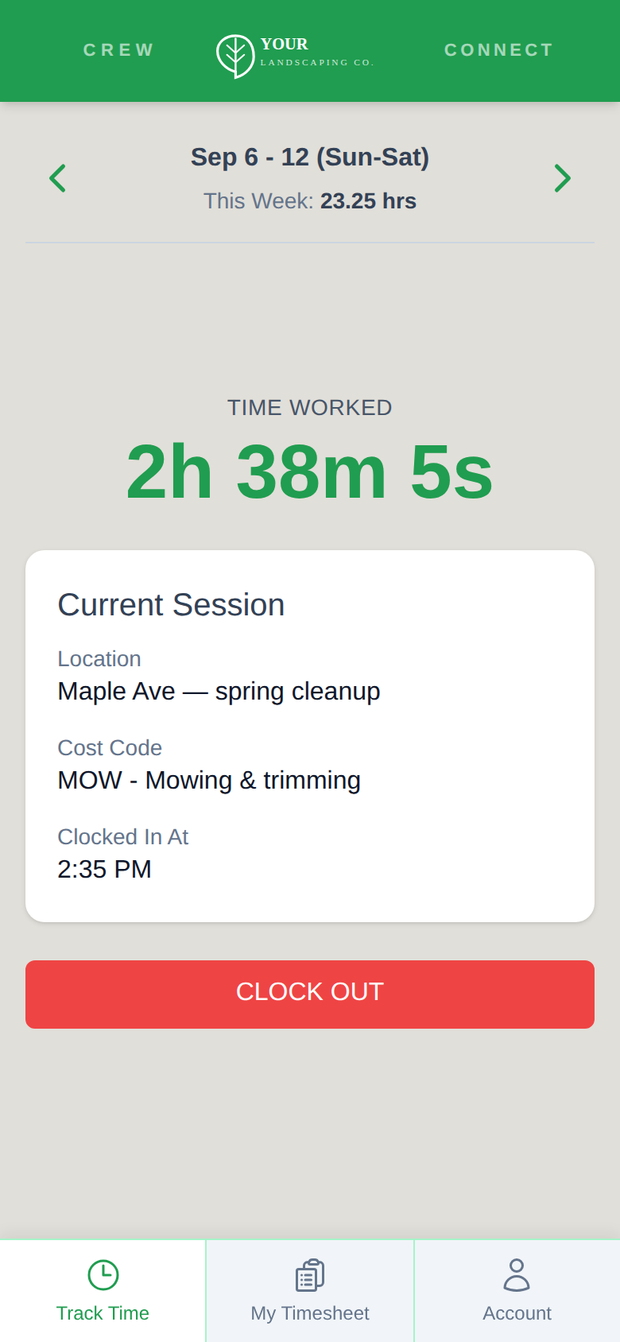
Your crew opens it on the phone already in their pocket, picks the location and the kind of work, takes a photo, and taps Clock In. By the time the truck is back at the shop, the office has timecards and payroll reports with your own pay rules already worked out.
Built for landscaping crews first, and for anyone whose work address changes with the weather. It replaces the paper timesheet and the time-clock app nobody liked. It is not a scheduling tool, a fleet tracker or a payroll service — it does one job.
Built and operated by App Integration Solutions, LLC.
How it works
Two set-up steps, then it runs itself.
-
The office gets set up. Once.
Locations, each with a boundary if you want one. Cost codes. Your pay rules. Your people. Administrators get an email invitation; field workers get a set-up link, either as a QR code to scan across the desk or by email. Never as a text.
-
Each worker sets themselves up. Also once.
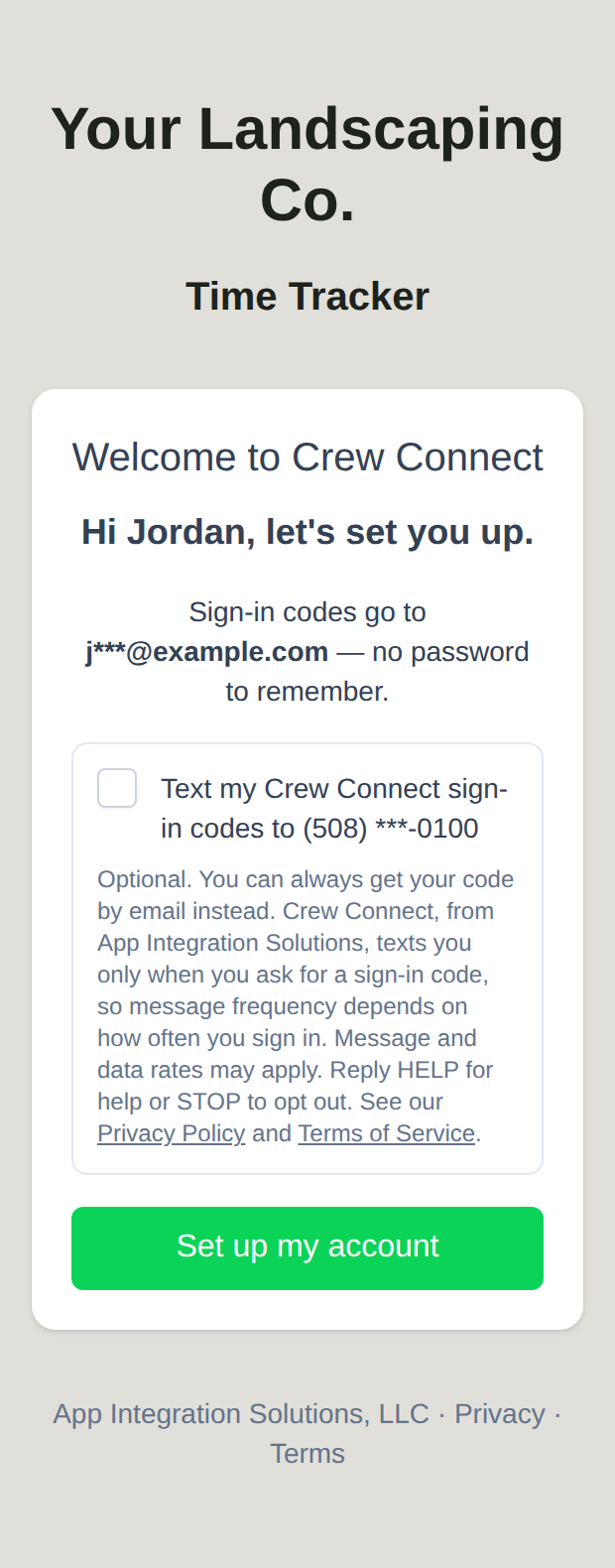
One short screen: their name, their contact details with most of the characters starred out, and one optional box about text messages. They tap “Set up my account” and that is them, done. No password to invent, forget, and end up written inside a hard hat.
-
At the location, they clock in.
Pick the location, pick the kind of work, take a photo, tap Clock In. Clock out the same way at the end. No bars at the back of the property? The punch waits on the phone, keeping the time it actually happened, and goes up the moment the signal comes back.
-
The office checks, then pays.
Entries land in the company panel as soon as a phone finds a signal. Timecards and a payroll summary come out with your rules already applied. Fix whatever needs fixing, then export it.
What the app notices — and what it leaves alone
The part worth reading out loud to the crew.
- Where, noted. Never a bouncer.
- At each punch Crew Connect notes where the phone was and whether that was inside the location’s boundary. Noted, not enforced: someone parked across the street, or whose phone cannot find a satellite under a maple, still clocks in. The entry says what happened and you decide what it means. GPS position is captured only at the moment you clock in or out. Crew Connect does not track your position continuously or in the background.
- A photo at every punch.
- A quick shot of themselves at clock-in and clock-out, kept with that entry so the office knows who punched. The camera does nothing else — no scanning, no watching, no surprises.
- It works out of range.
- Crew Connect installs on the phone’s home screen like a real app. A punch made with no coverage sits on the phone, keeping the time it actually happened, and sends itself when the signal returns.
- No passwords for the crew.
- They sign in with a one-time code — six digits, good for five minutes, good once — sent to their email or, once texting is switched on, to their phone if they agreed to texts on their set-up screen or from the Profile screen in the app. A code goes out only when someone asks for one.
- The original times survive everything.
- Rounding, scheduled starts, lunch and overtime are all worked out on top of what was recorded. Nothing paints over the times themselves.
- Everyone can see their own hours.
- A worker can look up their own recorded time in the app, any time. The records belong to the employer; we hold them on the employer’s behalf, do not use them for advertising, and do not sell personal information.
The arithmetic happens by itself
Set it once in the company panel. After that it runs the same way on every entry, every week, with nobody reaching for a calculator on a Friday night.
Rounding
7:07 → 7:00 · 7:08 → 7:15
Every punch goes to the nearest quarter hour.
Scheduled start
In at 6:45 → paid from 7:00
Optional. The early bird gets the coffee, not the quarter hour. Anyone without a scheduled start is unaffected, and you can switch the whole thing off for the season your crews genuinely do start early.
Lunch
Past 6 h → 30 min unpaid
Off until you turn it on, and both numbers are yours to set. Once a day, on the day’s total, so three locations in one day is still one lunch.
Overtime
Past 40 h → 1.5×
In a Sunday-to-Saturday week; 40 is the default and yours to change. Double time stays off until you set a threshold. The split runs on paid hours, after lunch comes off, over whole pay weeks.
The rules change what gets paid. They never change what happened.
Crew Connect is a record-keeping tool: you set your own pay rules and you are responsible for them. Crew Connect applies them the same way every time, and shows its work on the timecard.
Meanwhile, back at the office
Administrators work in a web panel at your company’s own address. Nothing to install, nothing to update.
- Employees: add people, set a scheduled start, hand out set-up links as a QR code on screen or by email, and deactivate anyone who moves on — which signs them out everywhere at once.
- Locations, each with an optional boundary, and the cost codes your payroll uses.
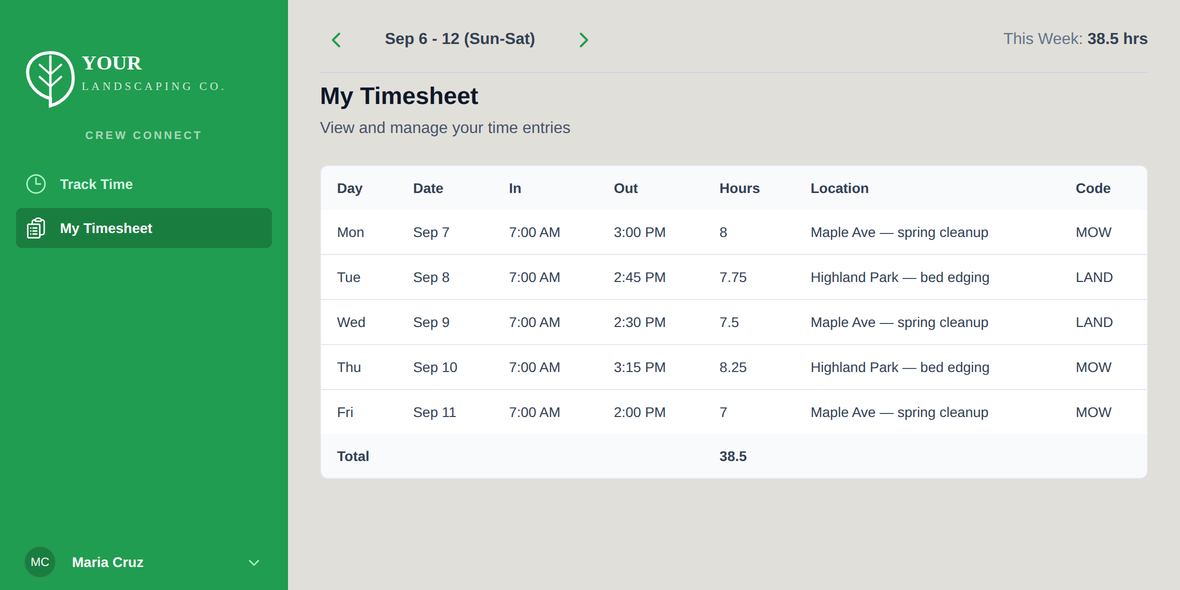
- Time entries as they arrive: who, where, when, inside or outside the boundary, and the photo. Correct one, or add the one somebody’s dead battery lost. Edited entries are marked, with the name of whoever changed them.
- Reports: a timecard per worker for any date range, a payroll summary with regular, overtime and double-time hours over whole pay weeks, and time by location. Export to Excel or CSV; timecards also as PDF.
- Company settings: your time zone and your pay rules, as plain switches and numbers — no consultant required.
Each company’s Crew Connect is genuinely its own: its own address, its own database, its own administrators. Nobody else’s crew is in there. Data is encrypted in transit and at rest.
Say hello
App Integration Solutions, LLC
support@crewconnect.live- Running a crew and want to try it?
- Email us with what your crews do and roughly how many people clock in of a morning. There is no online sign-up — we set accounts up with you, by hand, on purpose.
- Employees
- Your employer holds your account. For your sign-in link, or a question about your recorded time, start with your office. To ask what Crew Connect holds about you, or to correct or delete it, ask your employer or email us.
- Checking how Crew Connect uses text messages?
- The Text messages section below, the Privacy Policy and the Terms of Service are the complete public description of the program; email us for anything further.
Text messages
A summary. The Privacy Policy and the Terms of Service describe the program in full.
Only if you ask for them. Crew Connect never texts a phone number without the permission of the person who holds it, and your employer cannot give that permission for you. Field crew tick a box on their own set-up screen; leaving it alone gives you a working account whose sign-in codes arrive by email, when there is one on file for you — and your office can always hand you a new set-up code in person. Once texting is switched on, you can change your mind from the Profile screen in the app, which turns texting on or off under the same disclosure. An administrator invited by email is never texted; one promoted from the crew keeps the choice they made at set-up and, once texting is switched on, can change it from the Profile screen in the app.
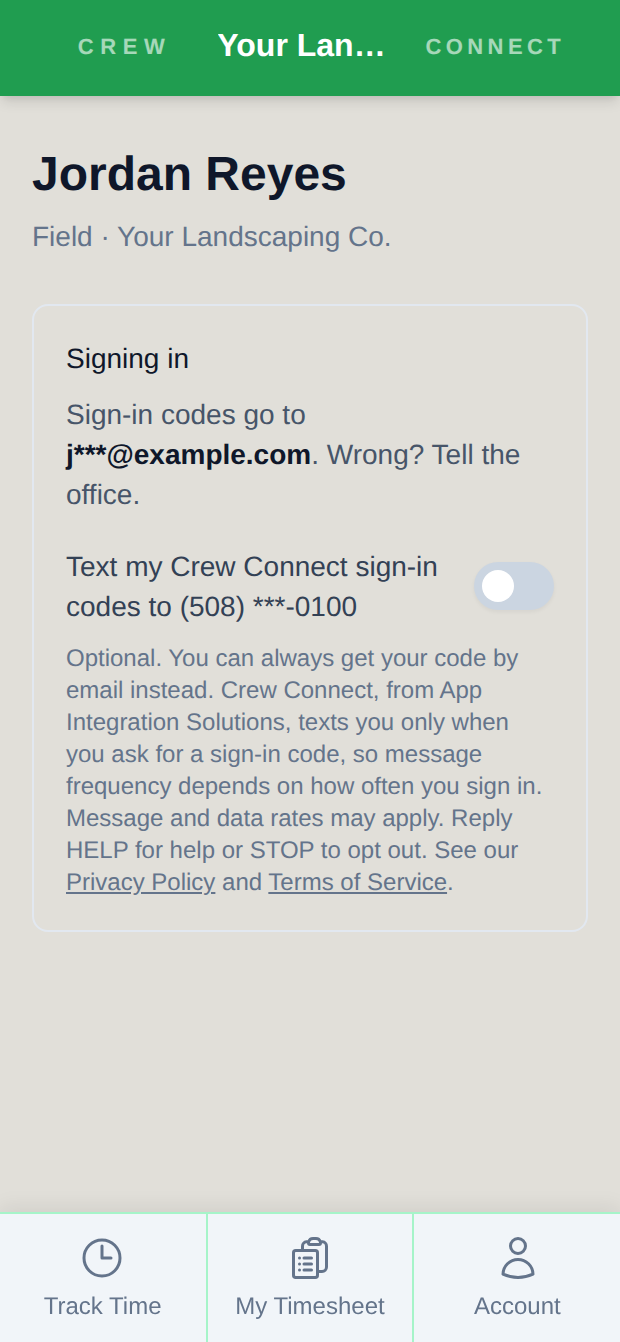
One kind of message. Your one-time sign-in code, sent when you ask for one. These are account-service messages; Crew Connect does not send marketing or promotional texts. A message reads, with a real code in place of 123456:
- App Integration Solutions
Frequency, rates and stopping. Message frequency depends on how often you sign in. Message and data rates may apply. Reply STOP to stop receiving texts — you can still sign in by asking for your code by email instead, or with a new set-up code from your office. Reply HELP or email support@crewconnect.live for help. Carriers are not liable for delayed or undelivered messages.
Your number stays yours. Mobile phone numbers and SMS consent information are not shared with, sold to, or provided to any third party or affiliate for marketing or promotional purposes.
Reviewing this program? Privacy Policy → Text messages carries it in full: who sends and receives, and exactly how consent is collected and recorded. Email us for anything it does not answer.